GadgetsNews wire, 6 h ago
Turn on Stolen Device Protection on your iPhone to guard your Apple ID
Reported by How-To Geek
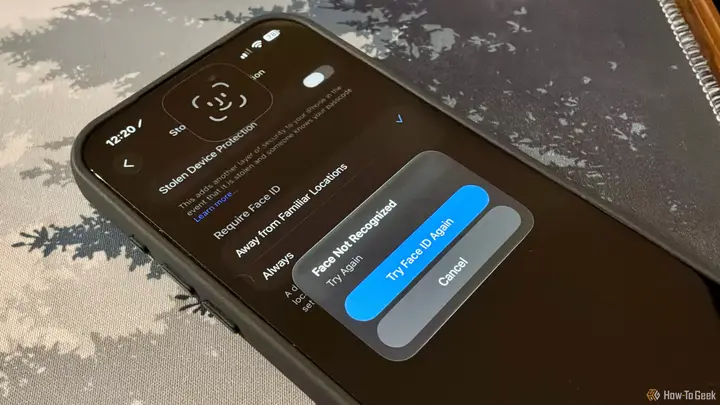
A how-to guide published on 16 November 2026 by How-To Geek urges iPhone users to switch on a setting called Stolen Device Protection. The article argues that a passcode is weaker than most people think, whatever its length. Anyone who knows it, including a stranger who takes the phone, can reach far more than the lock screen.
According to the article, a person with the passcode could use Apple Pay, change the device passcode and change the Apple ID password. iCloud sits at the centre of most personal data, so a thief who changes the password can lock the owner out of the account. The author says that remote erasing through iCloud does not always work in practice. Apple added Stolen Device Protection in iOS 17.3 to address this risk.
When the feature is on, it adds a biometric check in places away from familiar locations, such as home or work. Changing the Apple ID password requires a fingerprint or face scan, then a one-hour wait, then a second scan before the change is made. The same rules apply to adding a new face or finger to unlock the phone and to turning off Find My iPhone. Opening the Passwords app also needs biometrics.
The article says the feature is enabled by default on devices running iOS 26.4 or later. Owners of older devices on iOS 17.3 or later can turn it on by hand, or check that it is already active. The route is Settings, then Face ID & Passcode. After entering the passcode, the user scrolls down to Stolen Device Protection. There is a choice between requiring biometrics only away from familiar places and requiring them all the time, wherever the phone is. Turning the feature off also requires a biometric scan or the passcode.
The author stresses that the feature does not replace good habits. Anyone who holds the passcode or password can still reach information on the device, so it should never be shared. On the passcode itself, the article notes that a numeric code must be more than four digits, or the user can choose an alphanumeric code. The author writes that a longer, alphanumeric code is harder to guess, and that for them it takes about as long to type as a numeric one.
The article is a single opinion-led guide, and it does not cite new figures from Apple. It does not say how many iPhone users already have the feature turned on. The author writes that the feature is buried in Settings and that many people may not know it exists. Anyone with an iPhone on iOS 17.3 or later can check the setting in a few taps.
For readers with an iPhone, the practical step is simple. Check that the feature is on, choose the stricter option if you often travel or work in public places, and keep the passcode private. The guide does not cover other Apple accounts or devices, so its advice applies to the iPhone and its iCloud account described in the article.
Enjoying this? Get the Gadgets brief
Every Monday: the gadgets worth your money.
✓ Free · seven editions · one click to leave
Original reporting by the sources above. Summary by smart-home.space.