GadgetsNews wire, 5 h ago
Mapping your home network can expose four common Wi-Fi faults
Reported by How-To Geek
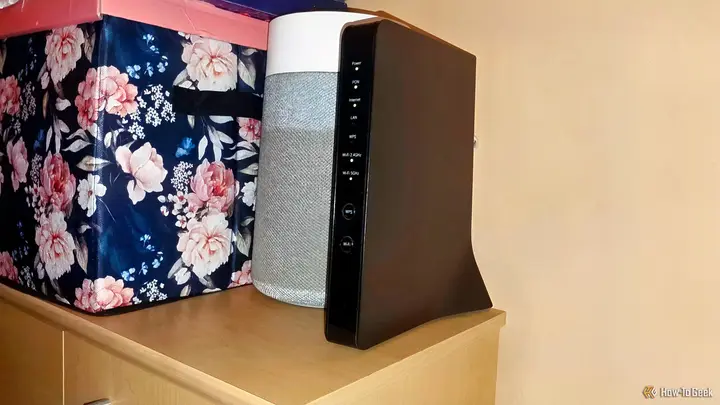
A How-To Geek writer reports that after drawing a full map of his home network, he found four Wi-Fi problems he had not known about. The author's point is that devices do not always connect the way their owners assume. The process needed only a router admin panel and a few free tools, and the author says it was simple to carry out. The article describes one home, so the findings show what happened on that setup rather than across networks in general.
The first problem was a phone that stayed attached to the main router. The phone was in the living room, near a mesh satellite, yet it was linked to the router in the office. Its signal read -76 dBm, while a TV in the same room read -51 dBm. The author does not confirm that the satellite would have given a stronger signal, but the choice still seemed wrong. He calls this a sticky client, where a device keeps its existing access point even when a closer one would serve it better.
To deal with a sticky client, the writer suggests checking the roaming settings in the mesh system. Turning Wi-Fi off and on again on the affected device may also prompt it to join a nearer node. The author says these steps are simple and can be enough on their own.
The second problem was a laptop on the 2.4GHz band, using channel 1. Its signal was strong at -45 dBm, so signal strength was not the issue. The author argues that any laptop able to use 5GHz should do so. Band steering in the router is meant to move devices to the most suitable band, but it does not always work. If a router keeps placing a device on 2.4GHz, the author recommends choosing the faster band by hand.
The third problem concerned the mesh satellite. It linked back to the main router over Wi-Fi rather than by cable. Every device on that satellite, including the TV, a games console and the phone, therefore sent its traffic over an extra wireless hop. The author notes that this wireless backhaul can compete with client devices for airtime, which may reduce speed and raise latency. Running a single Ethernet cable to a mesh node removes that extra hop.
The fourth problem was that the main router and the satellite both used channel 1 on 2.4GHz. Nearby access points on the same channel must take turns sending data, a effect known as co-channel contention. Two access points therefore do not give twice the airtime when they share a channel. The author points out that sharing a channel does not always mean the network is congested, and that many mesh systems assign channels automatically. Even so, he advises checking the channel settings.
The author says checking a network is straightforward. Log in to the router's admin panel and look for connected devices or clients. The list may show IP addresses, Wi-Fi bands, signal strengths and the access point each device uses. Where a router shows too little, he suggests Fing to identify devices on the local network and a Wi-Fi analyser to see nearby networks and channel use. He then drew the final map in diagrams.net.
The article does not say how often these problems occur across different routers and mesh systems, and it gives no measured speed results. Readers with other hardware may see different behaviour. The signal figures come from one home and one set of devices, so they should be read as an example rather than a benchmark.
Enjoying this? Get the Gadgets brief
Every Monday: the gadgets worth your money.
✓ Free · seven editions · one click to leave
Original reporting by the sources above. Summary by smart-home.space.