GadgetsNews wire, 7 h ago
Hidden Samsung Galaxy display settings for sharper, brighter or darker screens
Reported by Engadget
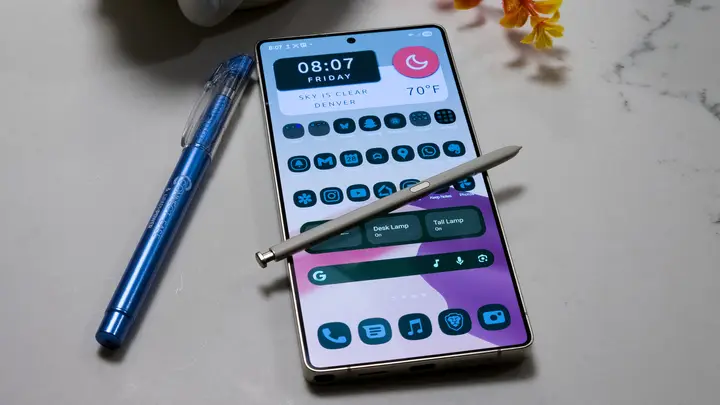
Engadget reports that Samsung Galaxy phones ship with several display settings that many owners never find. Some of them limit resolution and refresh rate, and others control colour, brightness and screen timeout. Samsung supplies panels to other phone makers, but according to Engadget it does little to show users these options.
The features are part of One UI, Samsung's Android interface. Engadget tested them on a Galaxy S23 Ultra, S25 Ultra and S26 Ultra running One UI 9. It also tested Galaxy Tab S9 and Tab S10 Ultra tablets on the previous One UI 8.5. The outlet says some features could not be confirmed on older devices, although they may still be available on some of them. Super HDR is the only feature it tested that the S23 Ultra lacks, because it arrived with the S24 series and works at hardware level.
Resolution and refresh rate are the first settings to check. Higher-end models such as the Galaxy S26+, S26 Ultra and Fold Z 8 are set to 1080p by default, although they can run higher. The screen can reach 120Hz, but it leaves the factory at half that rate. To change both, open Settings, go to Display, select Motion smoothness and choose Adaptive. Then open Screen resolution and pick the highest option on the right. Engadget warns that both changes use more battery, so users who care most about battery life should weigh that first.
Colour is controlled by Screen mode. Vivid is the default. It increases sharpness and saturation, but it reduces accuracy. Natural gives a more lifelike image. Owners who keep Vivid can use a white balance slider on newer devices to make the picture warmer, with more reds and yellows, or cooler, with more blues. Advanced settings add separate red, green and blue sliders for finer correction, plus a Vividness slider that can push saturation further.
Brightness has two hidden extremes. OLED panels struggle to match other technologies at peak brightness, so Samsung includes a sunlight mode that normally stays inactive. To enable it manually, open the brightness controls from the Quick Panel and turn off Adaptive brightness. An Extra brightness toggle then appears, and it lifts the screen above its usual maximum. For reading in the dark, Extra dim sits under Settings, Accessibility and Vision enhancements. It can also be added to the Quick Panel as a shortcut.
Screen timeout puts the phone into sleep mode, which pauses background processes and reduces radio activity. Engadget says two features can keep the screen on or keep the phone running with the display off. Both require Good Lock, which is available in the Galaxy Store and on Google Play. Install its Display Assistant module, and two new Quick Panel toggles appear. Keep screen on keeps the display awake for 30 minutes, then asks whether to extend it. Screen Curtain turns the display off while the phone keeps working. Engadget suggests it for long tasks such as exporting a 4K video edit.
Engadget's article also covers eyestrain, but the text available to us ends before that section, so this page does not report it. The source does not say how many owners already use these settings, and it does not confirm results on every model. Owners of older phones should test each option before relying on it.
Enjoying this? Get the Gadgets brief
Every Monday: the gadgets worth your money.
✓ Free · seven editions · one click to leave
Original reporting by the sources above. Summary by smart-home.space.